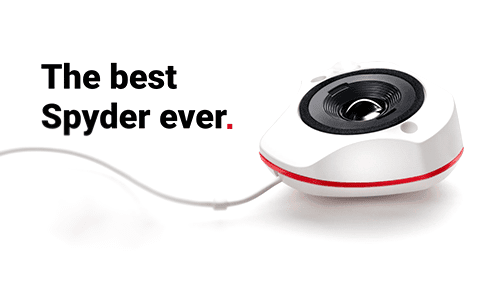
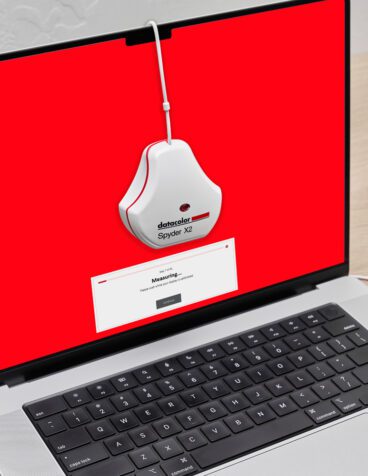
* Thanks to Spyder3 your monitor has revealed its true colours.
But what about your printer?
You’ve already corrected your monitor with our new Spyder3 display calibration device.
That’s step one taken care of – you can trust your monitor to show the true colours of your digital photos. Now what about your prints?
Do you find that the prints from your printer never quite match the picture on your screen?
The problem is that the output of any printer varies from unit to unit and also depends on the paper and ink you are using.
The solution is to do the same for your printer as you have done for your monitor – create a profile.
A profile is simply a description of your printer behaviour created by comparing the printed colour on your chosen paper with the colour
sent to print by the Spyder3Print software.
A quick explanation of the process:
| * |
Print a sheet of paper marked with different color patches (called a target) on the paper you want to profile.
Make sure you use the same printer, ink and paper you want to use later to print your photos. Turn off the colour management in your printer’s driver. |
| * |
Read the colour patches using the Spyder3Print hardware. You can choose between 150, 225 and 729 colour patches and optional 238 gray patches.
Sounds like a lot? It won’t take you more than ten minutes. |
| * |
After you’ve finished the colour reading, the Spyder3Print software will automatically create a customised printer profile for your
combination of paper, inks and printer. |
| * |
Use this ICC (ICC = International Color Consortium) profile when you print your pictures and your imaging software will
know exactly how your printer will reproduce the colours and will be able to make adjusments to ensure that you print smooth, neutral images.
Still wondering how to do ? -> check out our screencasts - they guide you step by step:
 
|
This sounds good, but...
„I use the printer profiles supplied by the printer manufacturer“
| * |
If you’re satisfied with these profiles, great – you don’t need anything else. However, these generic printer profiles are not as
precise as a profile you create for yourself as they’re not created specially for your printer. Printers are mass-produced devices and each has its
own set of characteristics. By not profiling your own printer, you won’t be getting the best out of it. |
„I would love to use other brand of FineArt paper, but I don’t find any profile for them“
| * |
Here again you need to create your own printer profiles describing the reaction of your printer with this particulary sort of paper.
Spyder3Print will create this profiles for you. |
„I am not printing myself but sending my photos to a lab“
| * |
Great – you don’t need anything else! Just make sure you ask your lab about the printer profiles they are using. If they say they are
using „Adobe RGB“ or „sRGB“ then it might be time to change lab. Just as you should when you are printing at home, every lab needs to create an individual printer
profile for its machines. When you have their profile, install it into your own system folder and use the softproof function of your digital imaging software to
preview the image on your calibrated monitor. You will be able to see how the print will look before sending it off to the lab. |
Spyder3Print complements Spyder3Pro and Spyder3Elite, enabling you to create custom printer profiles. Spyder3Print produces professional-looking prints
accurately, avoiding costly trial-and-error testing.
Combining these two tools, you will get a complete calibration package for the whole digital workflow, from monitor to the final print.
Take control of you your digital darkroom. That means no more guess work and no more wasted paper or ink!
Find more details at
http://www.datacolor.eu/en/spyder3print.
Any questions? Get in touch with us: sschwery@datacolor.com